Firmware Update (Burn Code)
A practical guide for burning firmware with Armino and BKFIL.
Quick Checklist
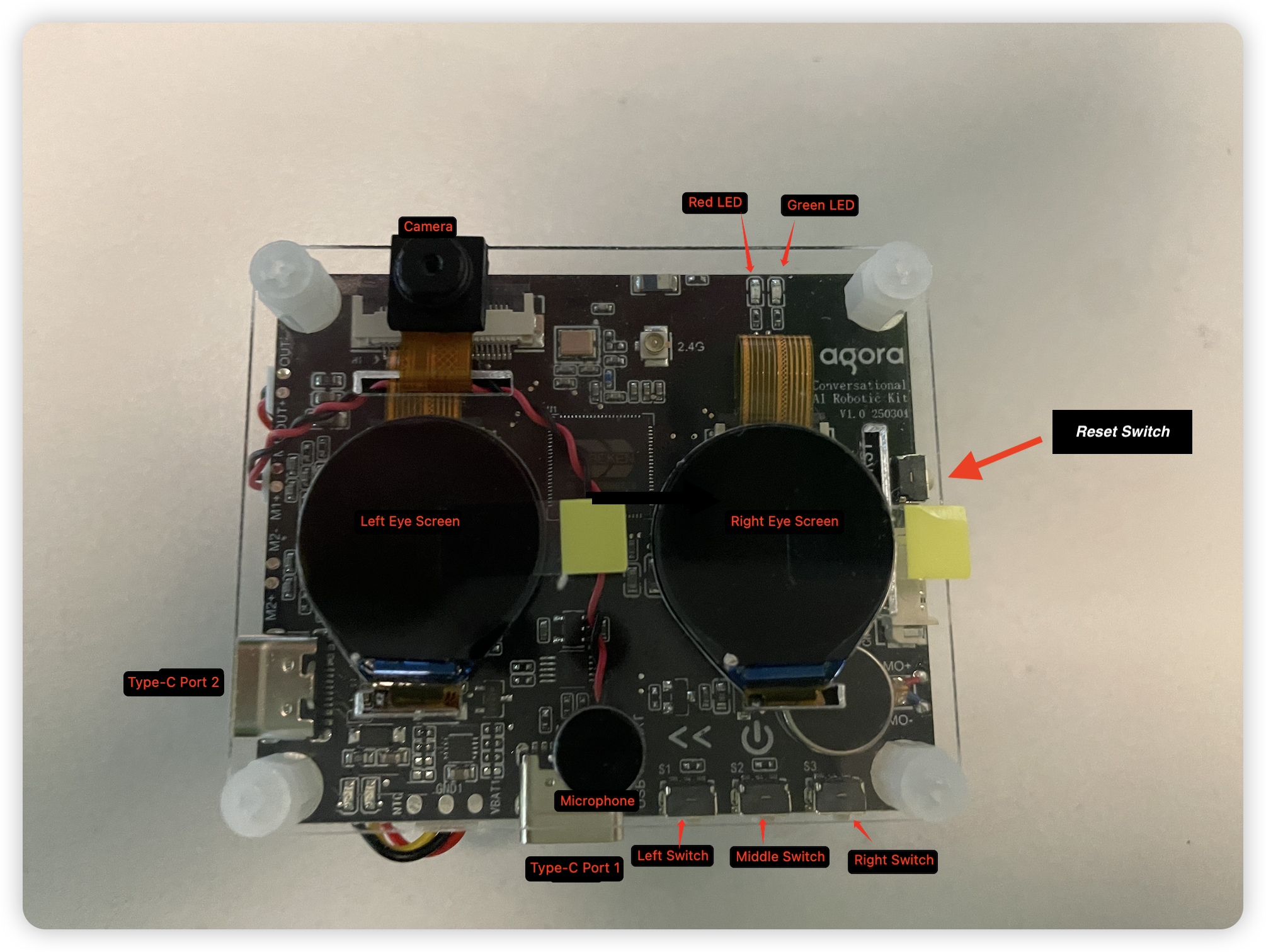
- Connect your laptop to Type C-Port 1 with a USB cable.
- Use a CH340 serial tool board (recommended) with baud rate 1500000.
- Have BKFIL ready: BKFIL.exe (Windows) / BKFIL (macOS).
- Prepare all-app.bin (and bootloader.bin for first-time security projects).
Overview
Armino supports firmware burning on Windows and macOS. This page summarizes the key steps and files so you can burn firmware reliably.
Burning Output Files
After building the app project, all-app.bin is generated under build/app/bk7258/. This .bin file can be burned.
First-time burning for a security project
Burn bootloader.bin first, then burn all-app.bin.
Burn Through Serial Port
Remarks
- Armino supports burning via Type C-Port 1.
- It is recommended to use a CH340 serial tool board for download.
- On Windows, Armino currently supports UART burning.
Burning Tool (BKFIL)
Download packages:
- Windows: BEKEN_BKFIL_V3.0.1.4_314_20240924.zip
- macOS: BKFIL_macos_v4.0.1_25091001.zip
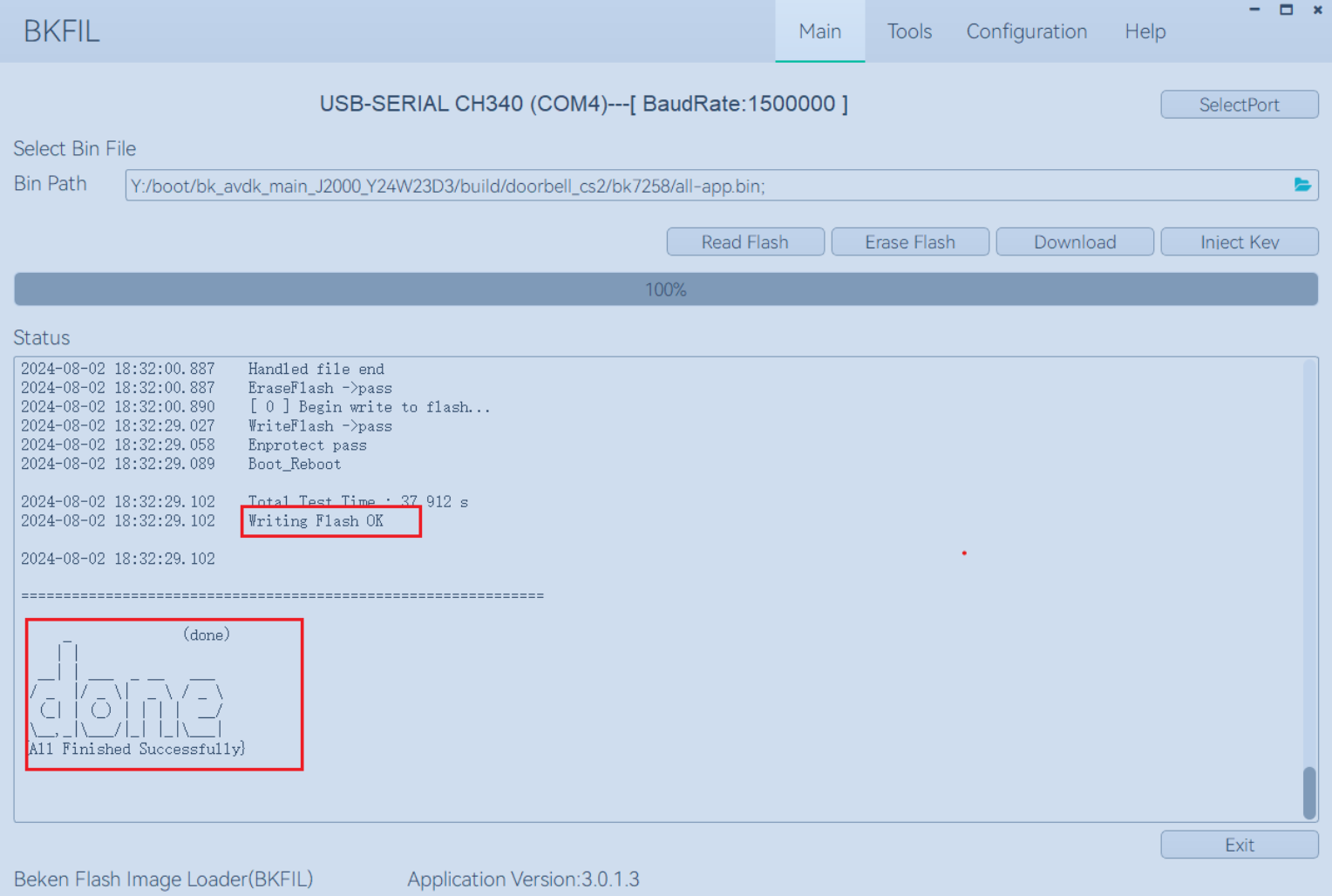
The BKFIL.exe interface and configuration look like:
Step-by-Step Instructions
- Connect your laptop to Type C-Port 1 using a cable.
- Select the correct COM port in BKFIL and connect to the hardware.
- Choose the required .bin file path (for example: all-app.bin).
- Hold the button (Reset Switch Button) on the right side of R1, then click Burn.
Physical AI Doc
This page is a simplified version of the Physical AI Doc for firmware burning. If you have a team-specific workflow, keep the order of burning files consistent with your security settings and build output.