Quick Start Guide
For detailed network configuration instructions, including connecting to your current Wi-Fi network, please check the Getting Started section below.
Power On
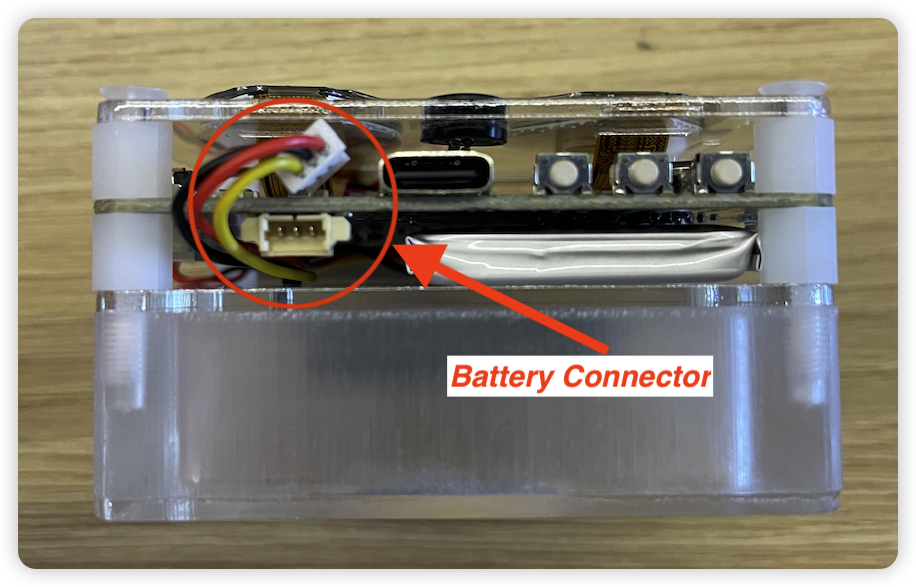
Plug the battery into the connector, then press and hold the "Middle Switch" until vibration completely stops.
Start Interacting
- 1. Press and Hold Middle Switch (1s)
- 2. Wait 3-5 seconds for the eye screens to activate (red LED will stop blinking)
- 3. Try these conversations:
- • "Tell me more about the Agora Convo AI Device Kit."
- • "Tell me about the company Agora?"
- • "Who is Bill Gates?"
- • "What's 15% off a $328 dress?"
Getting Started
Step 1: Power On
- Plug the battery cable into the connector
- Press and hold the "Middle Switch" until vibration completely stops
- Release to see red LED blinking and hear voice prompt "the network connection is failed, please check your network"
Step 2: Enter Network Configuration Mode
- Press and hold the "Left Switch" for 3+ seconds
- You will hear voice prompt "Please use Bluetooth for network provisioning"
Step 3: Install and Log in to the Agora Convo AI App
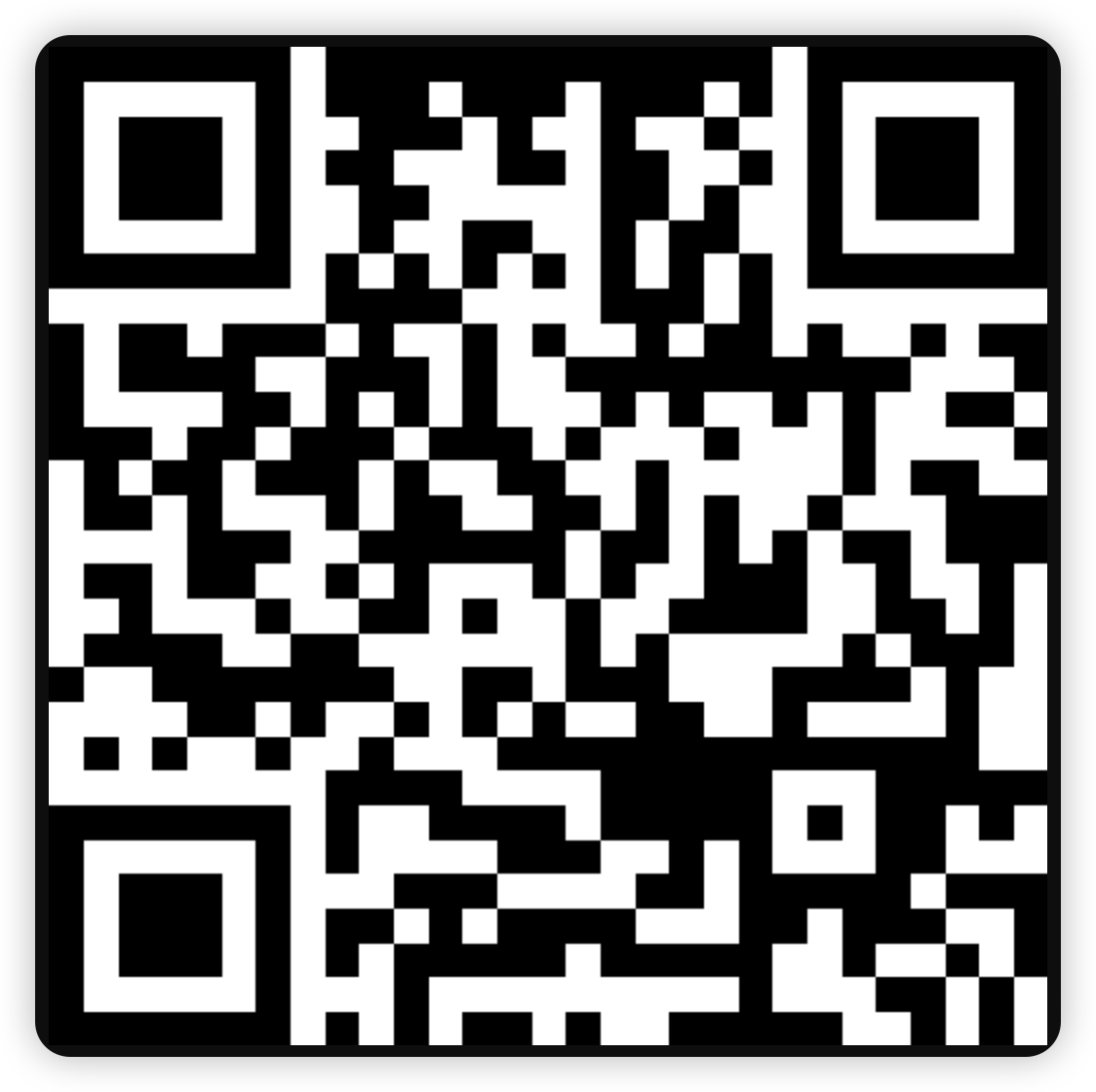
- Scan the QR code on the right to download and install Convo AI App
- Launch Convo AI App
- Tap "Call AI Engine" to access the login screen.
- Grant the required permissions when prompted and complete the login.
Step 4: Network Configuration
- Tap the Menu button in the top-left corner
- Tap “+” under “Conversational AI Devices”
- Tap "+" on top-right to add new device
- Tap "Next" ...
- When the target device appears in the App, tap the device name
- Confirm your Wi-Fi network name
- Enter Wi-Fi password and tap "Next"
- Wait 3-5 seconds for "Device Added" confirmation
Step 5: Start your conversation
- Wake up: Press and Hold Middle Switch (1s) (wait 3-5 seconds for eye screen activation, the red LED will stop blinking)
- Try these commands:
- "Tell me about the company Agora?"
- "Who is Bill Gates?"
- "What's 15% off a $328 dress?"
Step 6: Power Off
- The device automatically enters sleep mode after 3 minutes of inactivity (voice prompt: "AI Agent Disconnected")
- Sleep mode: Press and hold the "Middle Switch" until the red LED extinguishes and the vibration stops
- Full shutdown: Disconnect the battery connector
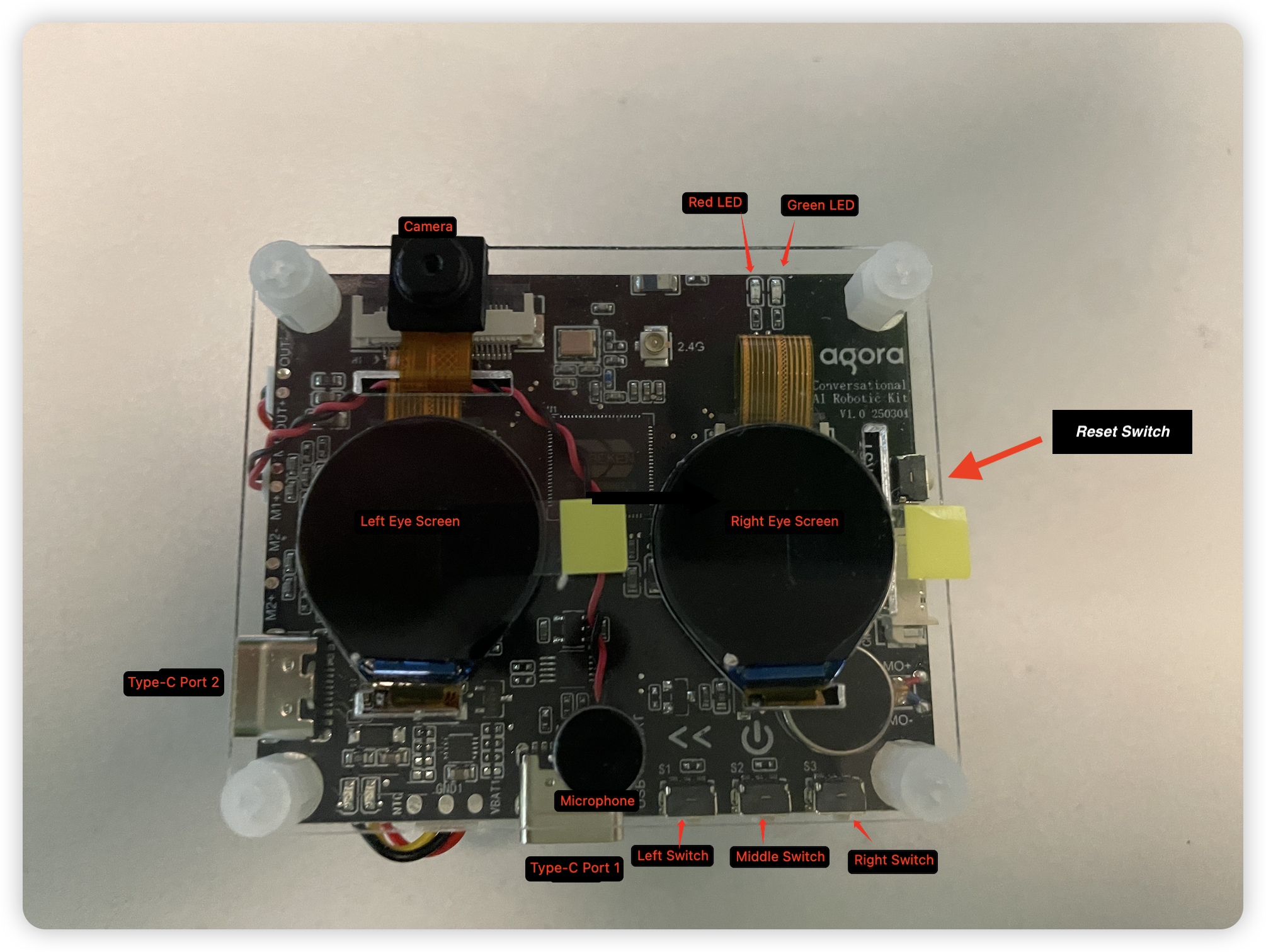
Hardware Components
Download App

Android
iOS
Tutorial Video
FAQ
Power Operations
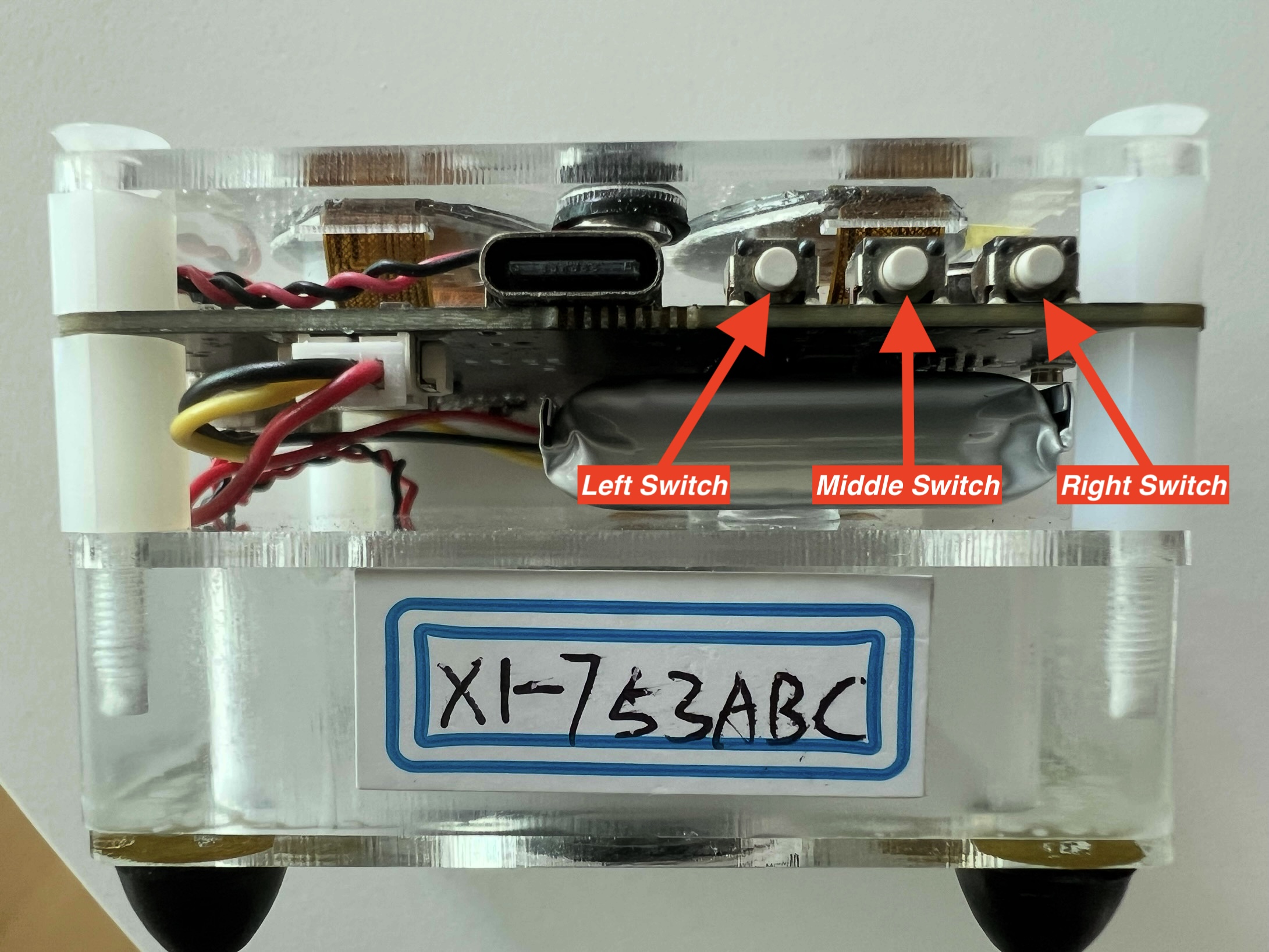
- Power On: Press and hold the “Middle Switch” (S2) for 3+ seconds
- Power Off: When powered on, press and hold the “Middle Switch” (S2) for 3+ seconds
Network Configuration
- Enter Network Configuration Mode: When powered on, press and hold the “Left Switch” (S1) for 3+ seconds
- Device will enter network configuration waiting state
Volume Control
- Volume Up: Single click Left Switch (S1)
- Volume Down: Single click Right Switch (S3)
Role Switching
- 1: Perform role switching through the App
- 2: Use the Reset Switch (K1) on the right side of the device
- Note: Wake up the device again after switching to complete the process
Charging
- Use any Type-C Port for charging
- Note: Device can also be powered and used by directly connecting Type-C cable without battery
Hotspot-Only Setup
- Pre-configure hotspot to skip network setup:
- Name: AGORA_AI_KIT
- Password: 1234567890
LED Status Indicators
- Alternating Red and Green blinking: Waiting for Network configuration
- Red blinking: Waiting for Network Connection
- Green blinking: Network Connected, AI Agent Disconnected, Waiting for Wake-up
Wake-up
- Wake-up: Press and Hold Middle Switch (1s)
Wake-up Timeout
- AI Agent Disconnected: 3 minutes
Developer Guide
Customize functionality with our developer tools:
SDK Download
Get beginner-friendly graphical programming tools in the quickstart docs.
Tutorials
Please contact us for additional tutorials and learning resources
Community
Share your creations in our developer forum
No coding experience required to start AI development!